

You need a Referly account to start. If you have not created one yet, sign up here. New accounts open the onboarding wizard automatically at
/onboarding.What you set up during onboarding
The wizard moves through six steps, shown by a progress bar at the top:- Welcome to Referly.
- Tell us about your business: your business type and category.
- What do you want your program to do: your program goal.
- Set up your referral program: website, name, subdomain, and logo. Your program is created here.
- Set up your commission structure: how affiliates are rewarded.
- You’re all set: choose a plan and go to your dashboard.
Step through the wizard
Welcome
The first screen introduces Referly and what you are about to build. Select Get Started to begin.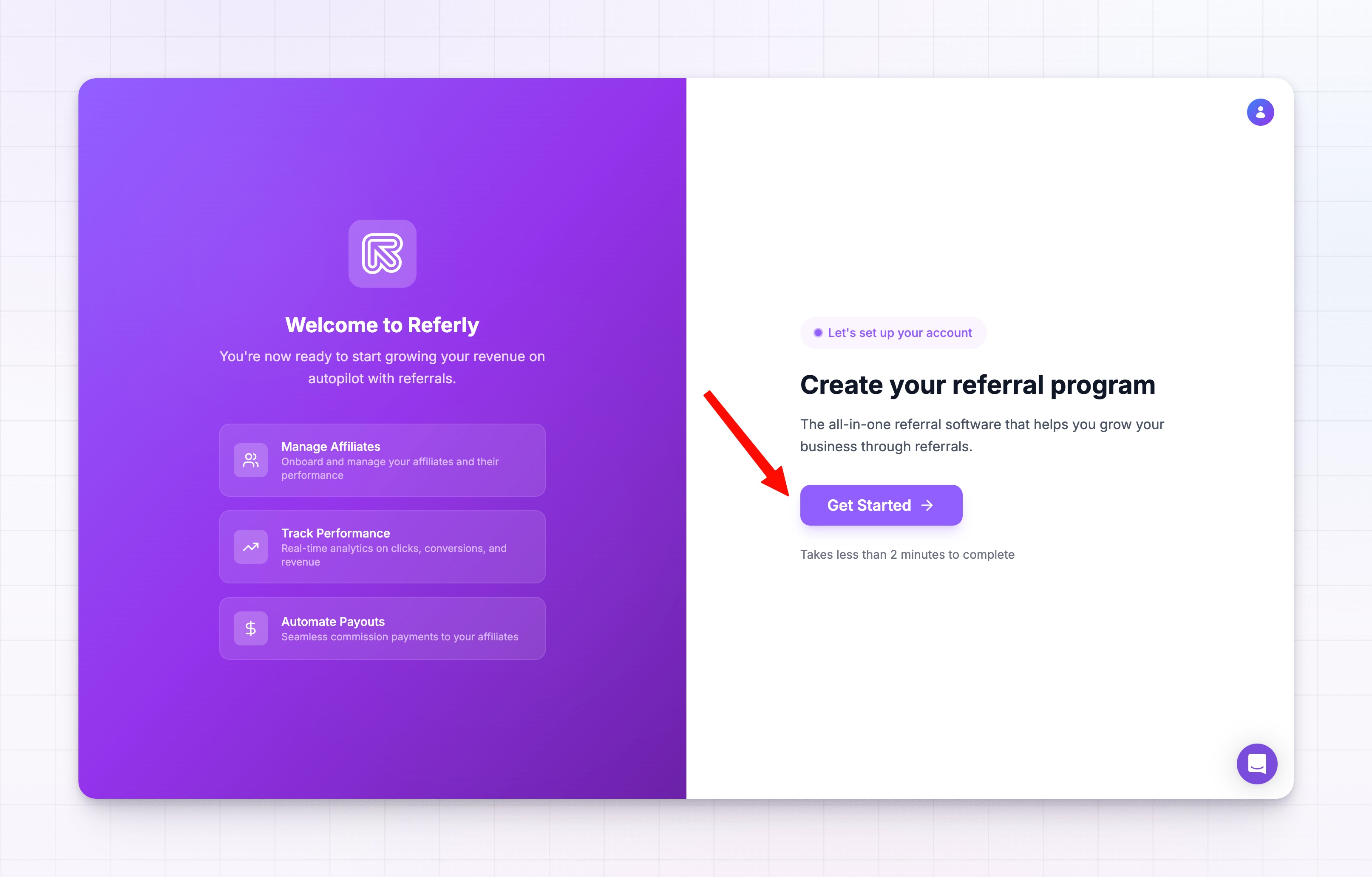
Tell us about your business
Pick the business type that fits you best: SaaS, E-commerce, Agency, or Other. Once you choose a type, a row of category chips appears below it. Select the category that best describes your niche. Referly uses these answers to tailor the rest of your setup. Both a type and a category are required before you can continue.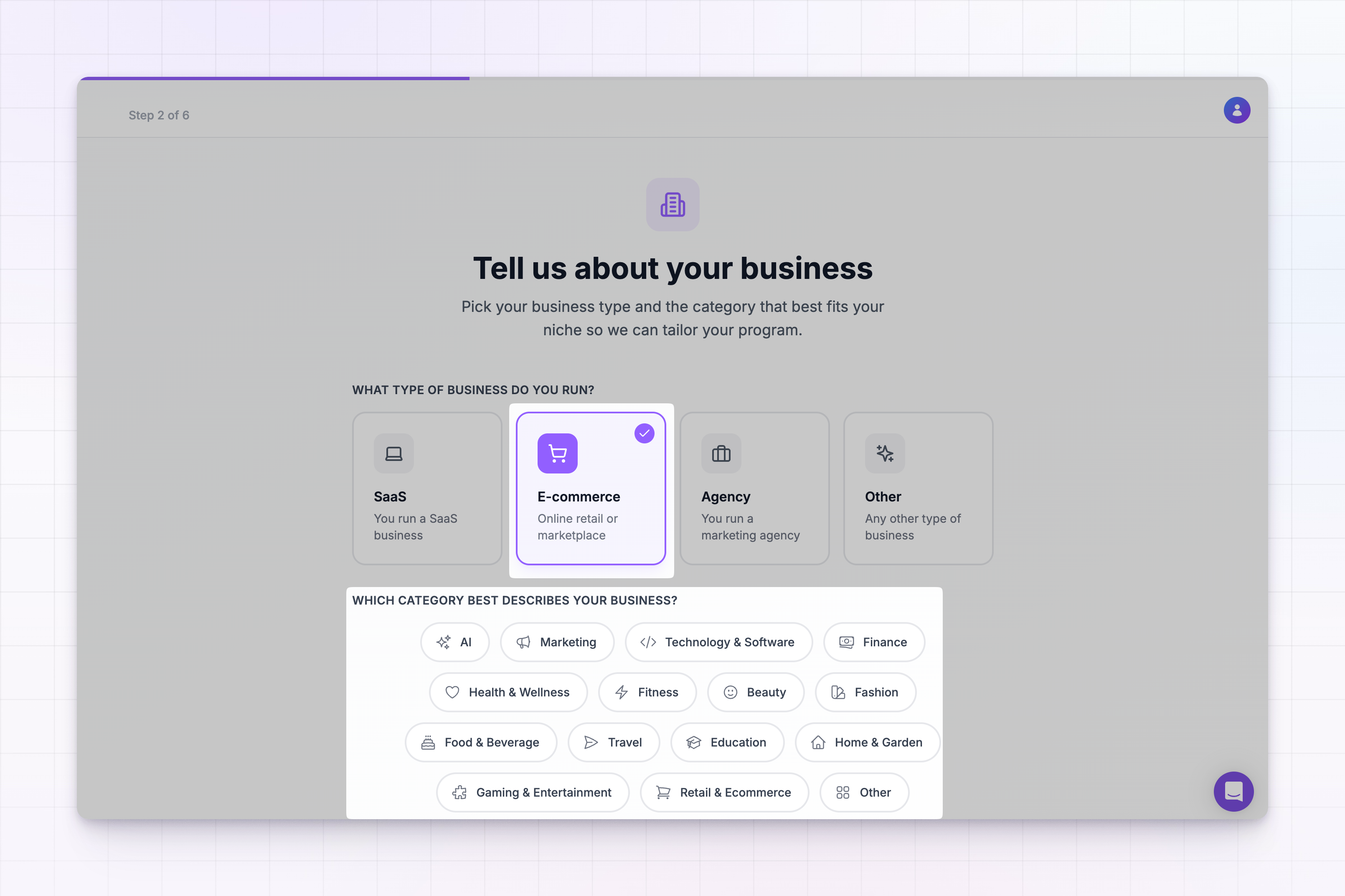
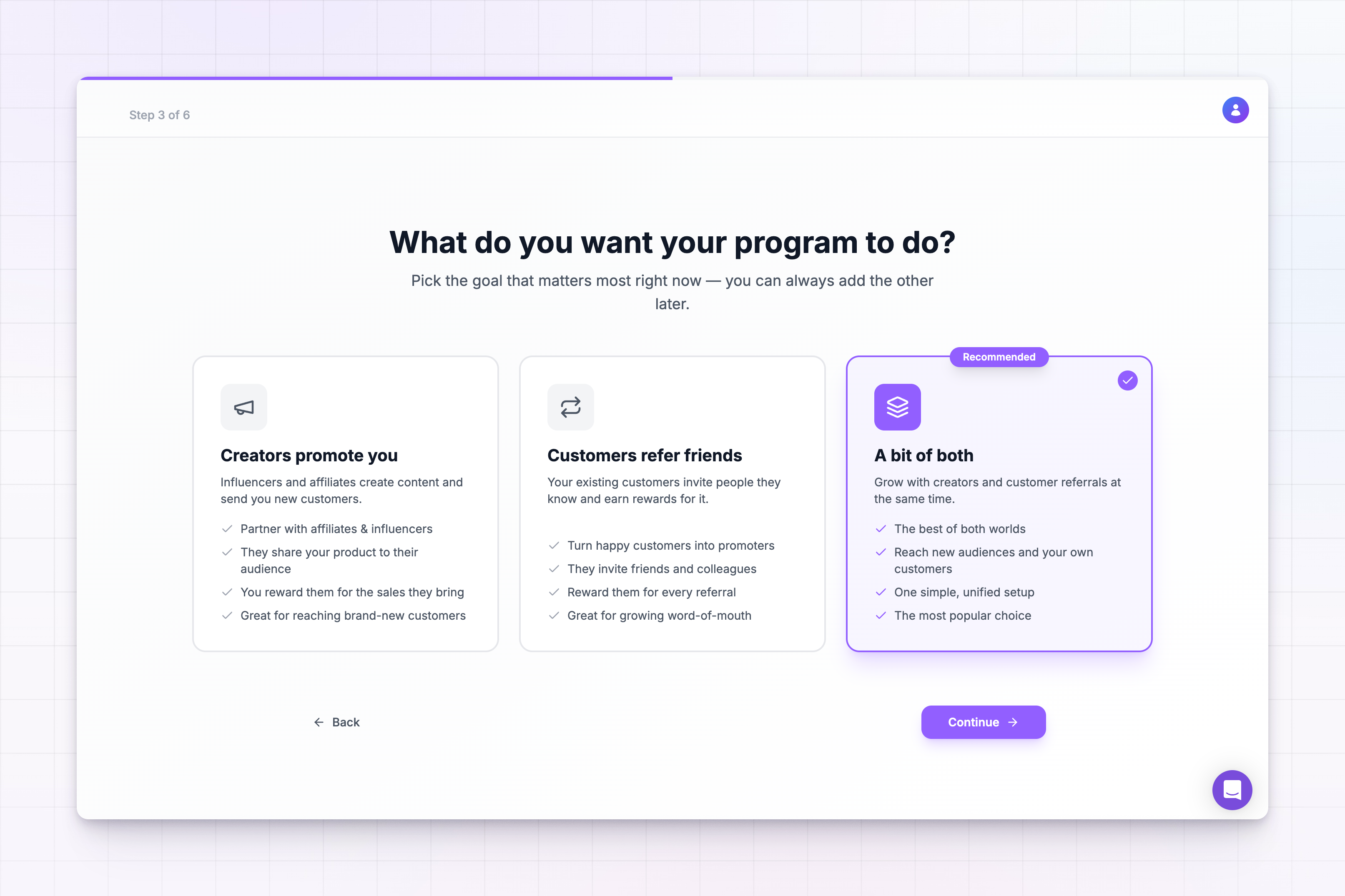
Choose your program goal
Tell Referly what you want your program to do. There are three options:- Creators promote you: affiliates and influencers send you new customers.
- Customers refer friends: your existing customers invite people they know.
- A bit of both: run creator and customer referrals together. This is the recommended, most popular choice.
Enter your program details
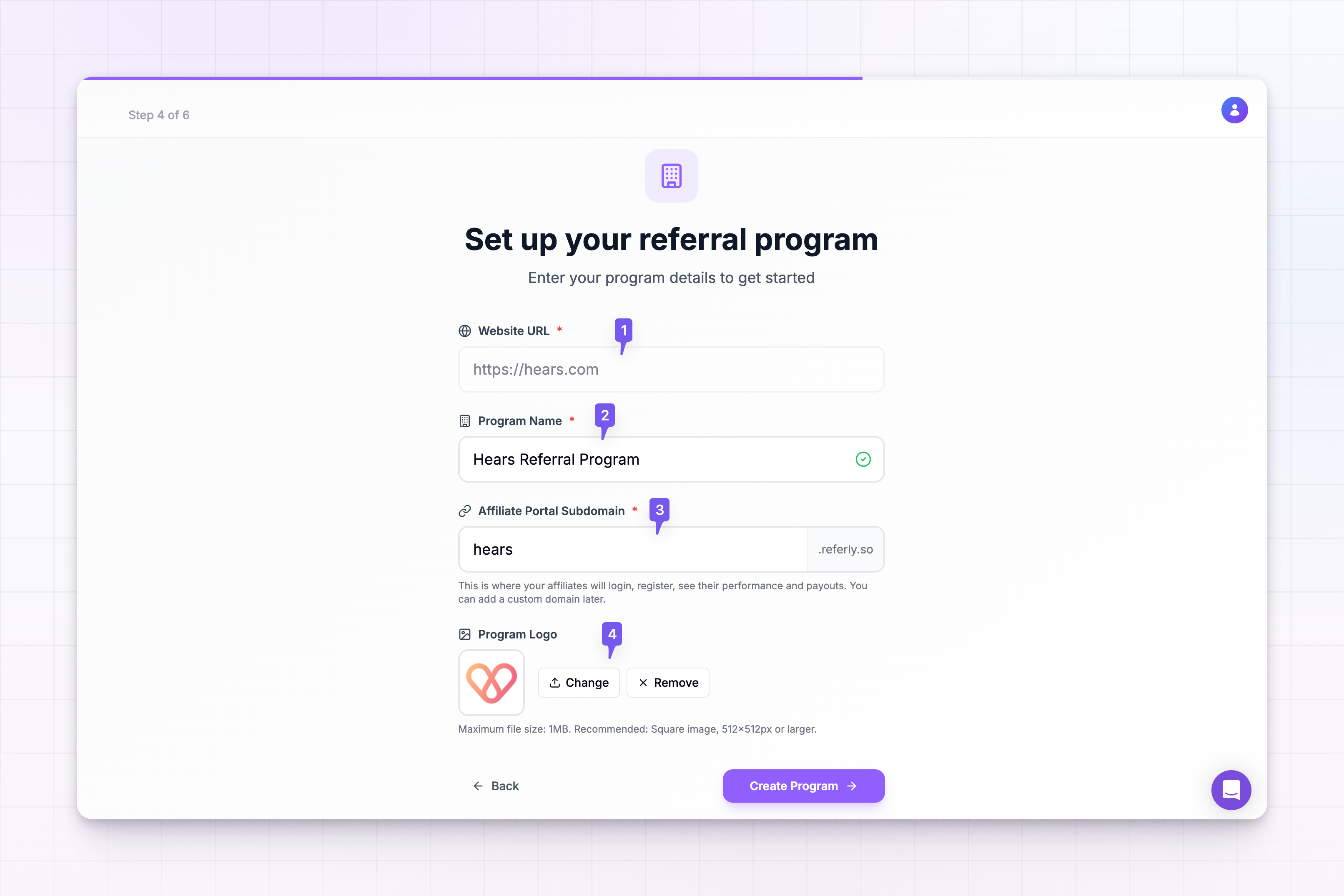
This is where your program is created. Start by entering your Website URL, then select Continue. Referly reads your website and pre-fills the rest of the form for you:1
Website URL
The address of the site you run your program for. It has to be a valid URL. Referly adds
https:// if you leave it off.2
Program Name
Auto-suggested from your domain, for example
Acme Referral Program. This is the name affiliates see. Edit it to anything you like.3
Affiliate Portal Subdomain
The web address where affiliates log in, register, and track their performance and payouts, for example
acme.referly.so. Referly suggests one and checks it for availability as you type. A green check means it is free; a red message means it is taken, so try another. You can add a custom domain later.4
Program Logo
Auto-fetched from your website. Select Change to upload your own image, or Remove to clear it. Maximum file size is 1 MB, and a square image of 512 by 512 pixels or larger works best.
If you go back to this step later in the flow, Referly reuses the program you already created instead of making a duplicate.
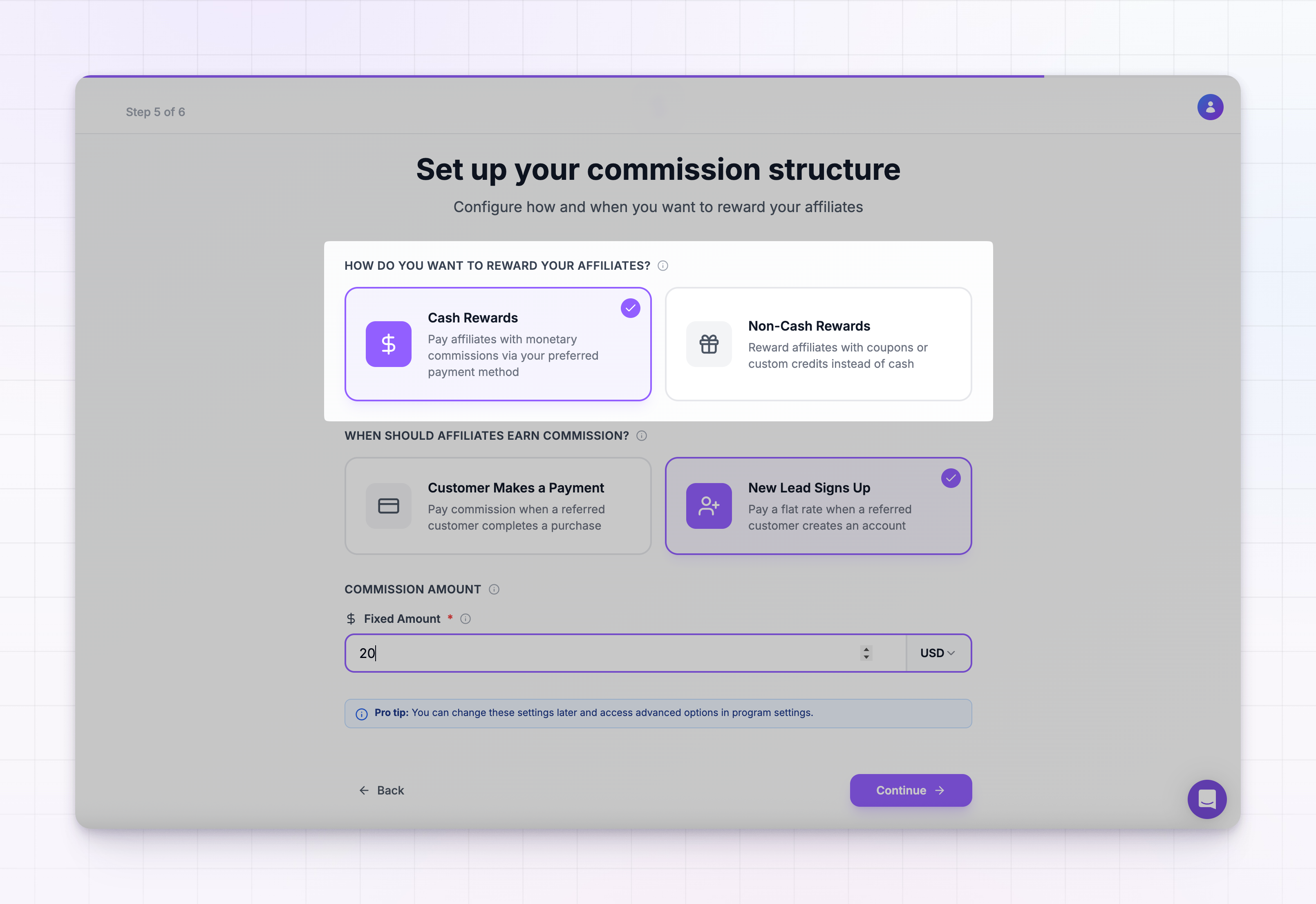
Set your commission structure
Decide how and when you reward affiliates. First choose a reward type:- Cash rewards
- Non-cash rewards
Pay affiliates a monetary commission. Configure:
- When affiliates earn commission: Customer Makes a Payment (pay when a referred customer buys) or New Lead Signs Up (pay a flat rate when a referred person creates an account).
- Commission frequency (payment trigger only): First Payment Only, or Recurring Basis to pay on multiple customer payments. If you choose recurring, set a limit: until the customer cancels, by number of months, by number of payments, or both.
- Commission type and rate (payment trigger only): Percentage (a share of each sale, for example 10%) or Flat Rate (a fixed amount per sale). Sign-up commissions are always a fixed amount.
- Currency: shown next to a fixed amount. It defaults to USD.
Finish and land on your dashboard
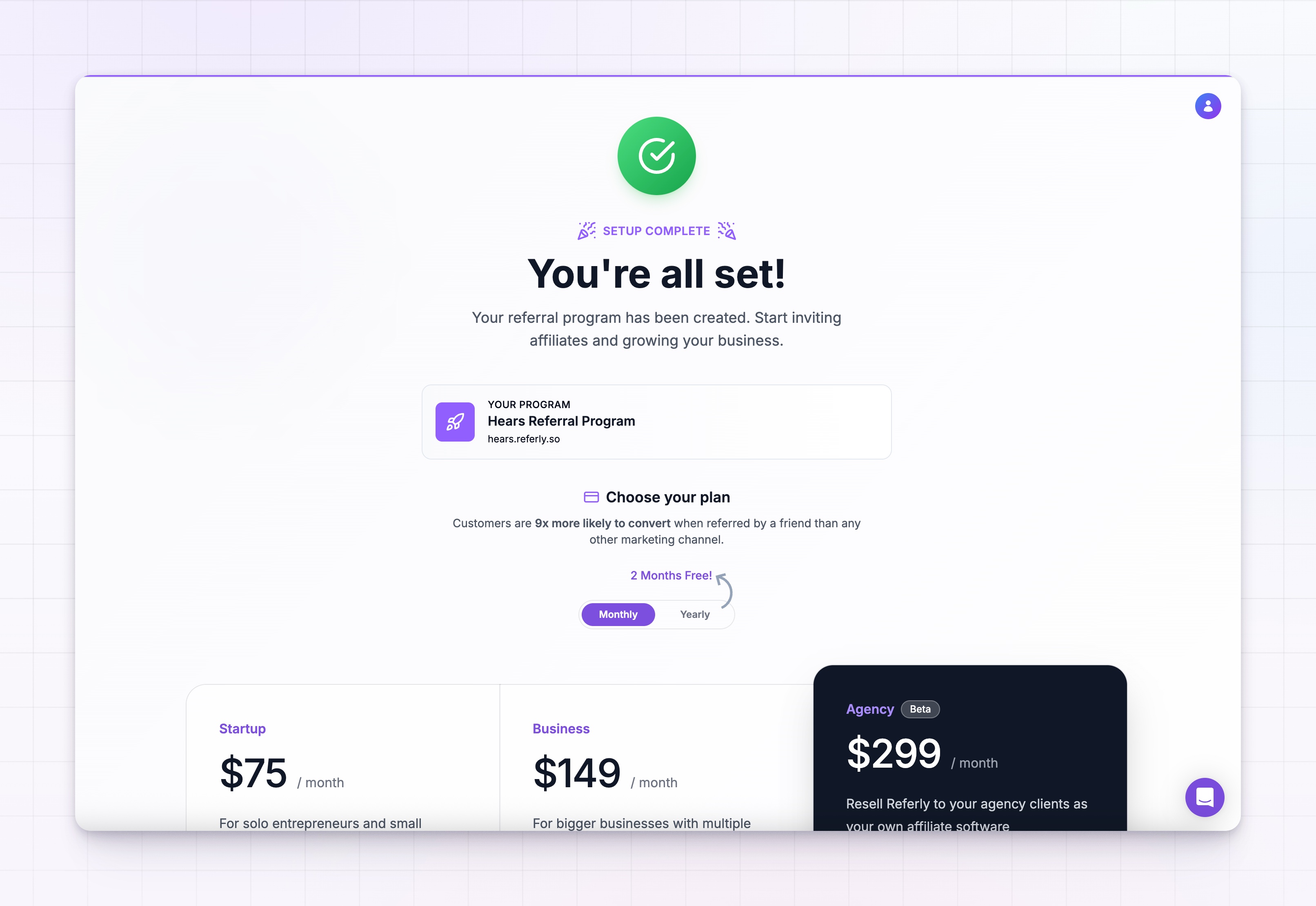
The final screen confirms your program is created, with a summary of your program name and affiliate portal link.- If your account already has a plan, select Go to Dashboard to finish.
- If you have not subscribed yet, choose a plan here first. See plans and features for what each one includes.
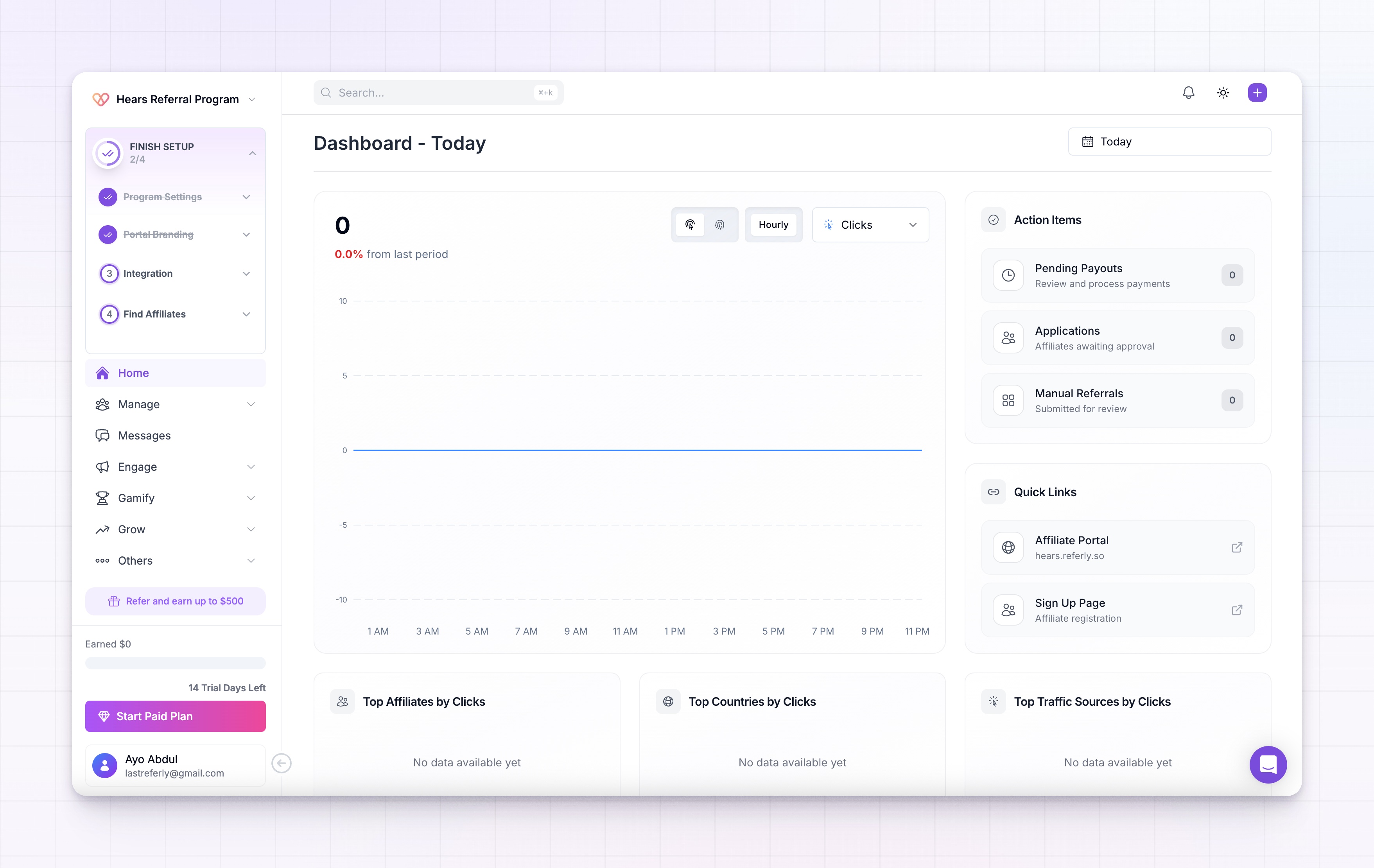
Your program, affiliate portal, and commission structure are set up. You are on the dashboard, ready to connect tracking and recruit affiliates.
Next step: connect your tracking
Onboarding creates your program, but sales do not flow in until Referly is connected to where your payments or orders happen. Connecting a payment or ecommerce platform is the natural next step.Connect an integration
Link Stripe, Shopify, and other tools so referred sales and rewards are tracked without manual work.
Related
Set your commissions
Go deeper on commission types, product-based rules, and conditions.
Set up your branding
Make the affiliate portal look like your product.
Recruit your first affiliates
Invite partners, add them manually, or open a sign-up page.
Program settings
Change your program name, subdomain, currency, and more.