

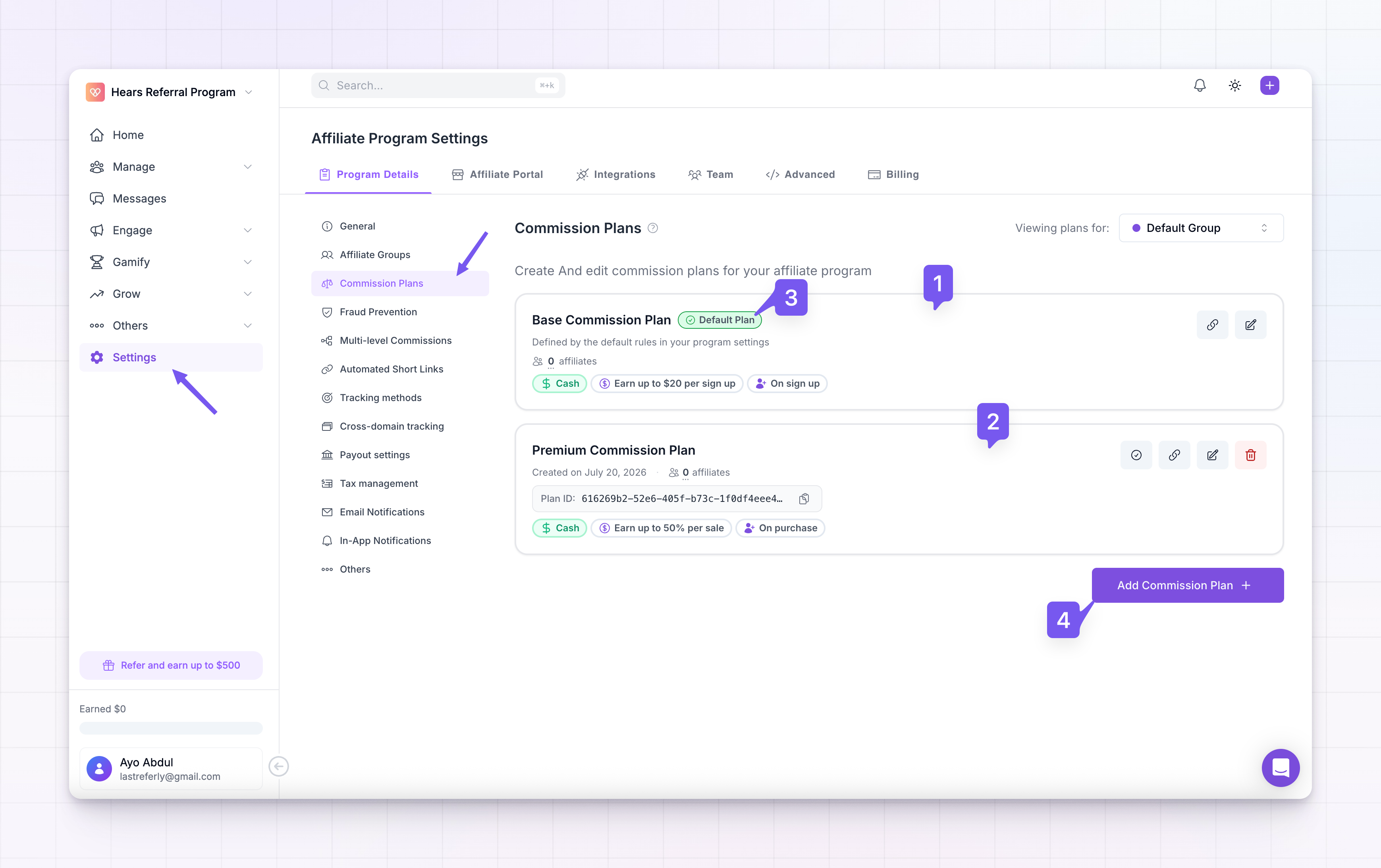
 At the top of the page you’ll see Viewing plans for: with your affiliate group. This lets you look at, and build, plans for a specific group. The card marked with the green Default Plan badge is the one new affiliates get automatically. The Add Commission Plan button, on the right, is where you build a new one.
The Base Commission Plan
The Base Commission Plan is always there. It’s a read-only reflection of your program’s general settings, so you can see your baseline terms without opening a separate editor. The helper text under it says Defined by the default rules in your program settings.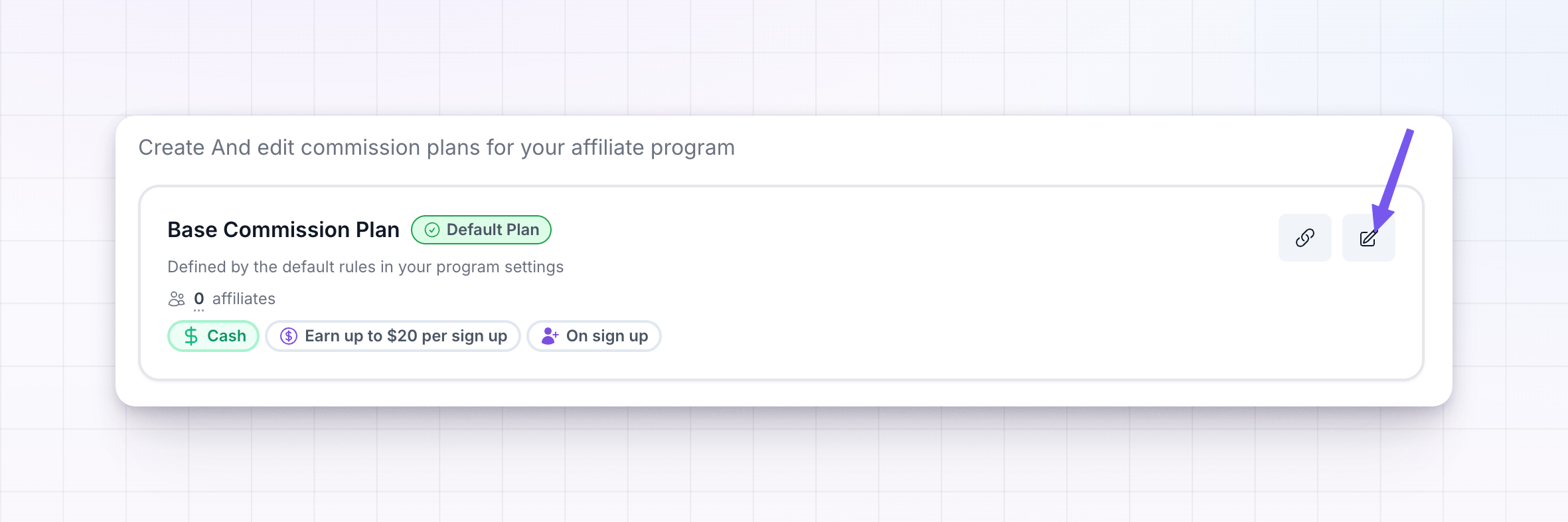 The card shows a quick summary: whether affiliates earn cash or a non-cash reward, how much they can earn, and when the reward triggers (on a purchase or on sign up). To change any of it, click the pencil Edit button. That takes you to Program details → General, where you set your program’s default reward.
Because it only mirrors those single settings, the Base Commission Plan carries one rate, one commission type, one recurring limit, one trigger, and one reward setup. It can’t use conditional rules, hold more than one commission amount, or be scoped to a single group. When you need any of those, build a custom plan instead.
The card shows a quick summary: whether affiliates earn cash or a non-cash reward, how much they can earn, and when the reward triggers (on a purchase or on sign up). To change any of it, click the pencil Edit button. That takes you to Program details → General, where you set your program’s default reward.
Because it only mirrors those single settings, the Base Commission Plan carries one rate, one commission type, one recurring limit, one trigger, and one reward setup. It can’t use conditional rules, hold more than one commission amount, or be scoped to a single group. When you need any of those, build a custom plan instead.
Custom commission plans
A custom commission plan is a real plan you build in the plan editor. It can do everything the base plan can’t:- Rule-based tiers, so a sale earns a different amount depending on the order, product, coupon, or landing page.
- Product-based amounts, so each product can pay its own rate.
- After-period tapering, so the rate changes over time (for example, a higher rate for the first few payments, then lower).
- Cash or non-cash rewards, such as coupons or store credits instead of money.
- Auto-approval for affiliates and rewards on the plan.
- Its own sign-up link, so anyone who joins through it lands on this plan.
What you can set inside a plan
Click Add Commission Plan to open the editor. The video below walks through the main sections so you can see what’s configurable. Here’s what each part does:
- Plan Name names the plan for your own reference. Affiliates never see it.
- Reward Type is a choice between Cash (a commission payout) and Non-Cash (a coupon or store credits).
- When should affiliates earn? sets the trigger: On Purchase or On Sign Up.
- Commission Type is Percentage or Flat, followed by the Rate or Amount you want to pay.
- For How Many Payments? and For How Many Months? turn a plan recurring and cap how long it keeps paying. Whichever limit comes first is the one that applies.
- Commissions tabs let you add more than one payout. The Default tab applies to any sale that nothing else matches. Add extra tabs to build tiers, each with its own conditions.
Commission conditions
Conditions tell Referly which tab to use for a given sale. The Default tab doesn’t need any. It’s a catch-all for anything that doesn’t match one of your other tabs. Every other tab needs at least one condition, since Referly has no other way to know when that tier should apply instead of the default. Click Add Condition on a tab and choose what to match the sale against:- Order Amount, matched as greater than or less than a number you set.
- Product, matched as any of or none of the products you pick.
- Coupon Used, matched as any of or none of the coupon codes you pick.
- Statement Description, matched as contains a word or phrase you set.
- Landing Page, matched as is, is not, contains, or does not contain a page you set.
After commission periods
Once a tab has a payment or month limit set, an After Commission Periods section appears so you can decide what happens after that limit runs out. If you leave it empty, the payout doesn’t drop to a lower rate on its own, it just stops the moment the limit is hit. Click Add period to add a Then step with its own Rate (or Amount) and its own Payments and Months limits. You can set both at once. Whichever one is reached first is the one that ends that period, which is what the Whichever comes first label next to the fields means. Chain as many periods as you need to taper a rate down over time, for example 20% for the first 3 payments, then 10% for the next 6, then 5% after that. Leave a period’s payments and months both unlimited if you want its rate to keep paying indefinitely. Once you do, that period becomes the last one and there’s no need to add another after it.Auto-approve settings
Open Auto-approve settings in the plan editor to decide what happens the moment someone joins through this plan, or earns a reward on it.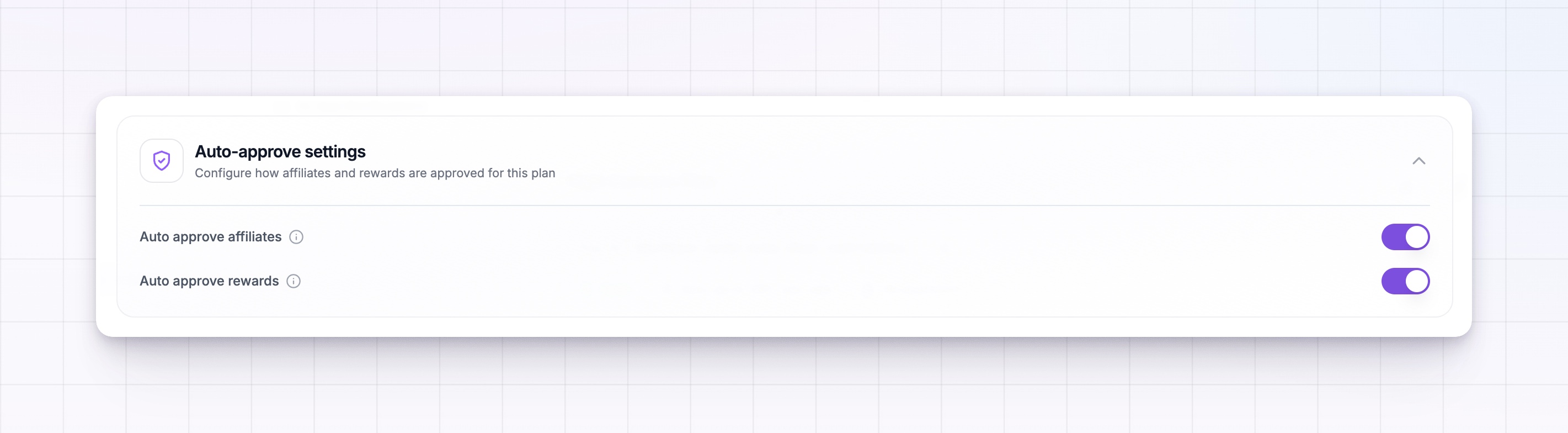
- Auto approve affiliates. When this is on, anyone who signs up through this plan is approved right away and can start promoting immediately. Turn it off and new affiliates wait in your approval queue until you review and accept them yourself.
- Auto approve rewards. When this is on, rewards earned on this plan are accepted as soon as they’re earned. Turn it off and rewards are held instead, waiting for your review, and any sale on hold won’t be paid out until you approve it.
Preview your plan
Before you save a plan, click Show Preview to see exactly what an affiliate would see if they opened this plan themselves, no guesswork about how your rate, conditions, and tiers add up.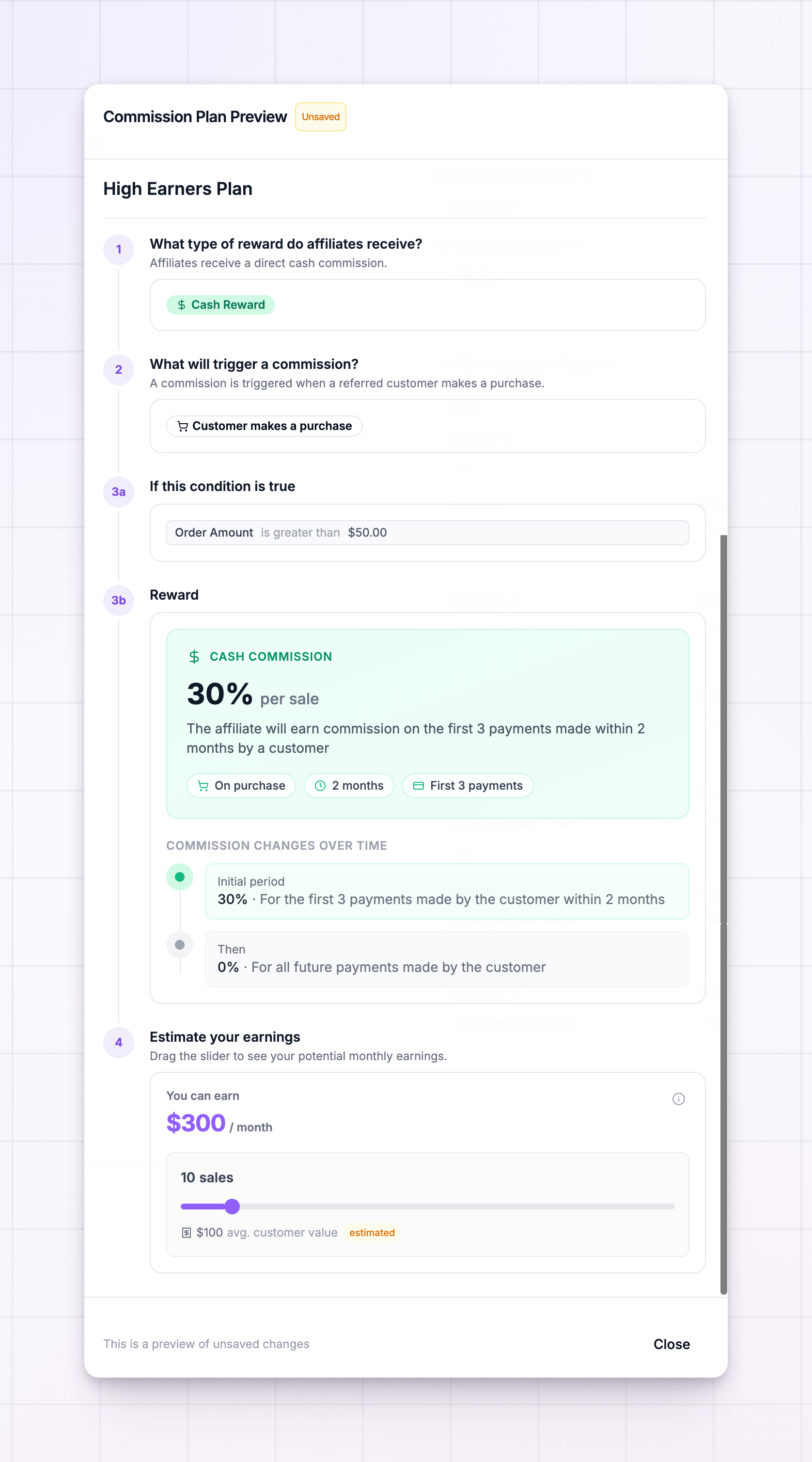 The preview opens in tabs:
- Overview shows the reward type, the trigger, and the key terms at a glance.
- Reward breaks down the rate or discount, how long it lasts, and any payment limits, including a full timeline if you’ve set up after-commission periods.
- Conditions lists each tab’s rules in plain language (for example, “Order Amount is greater than $100”), using the actual product and coupon names you picked. You won’t see this tab on the Base Commission Plan, since it has no conditions to show.
- Commissions lists every tier on the plan side by side, so you can double check the whole structure before you publish it. This tab only appears once a plan has more than one commission amount.
Product-based commissions
Pay a different rate depending on which product was bought.
Conditional rules
Vary commission by order amount, product, coupon, or landing page.
Non-cash rewards
Reward affiliates with coupons or store credits instead of cash.
Multi-level commissions
Pay affiliates on the affiliates they recruit.
Choose who gets which plan
A plan can apply at four levels, from the whole program down to a single customer. The more specific the level, the more it wins.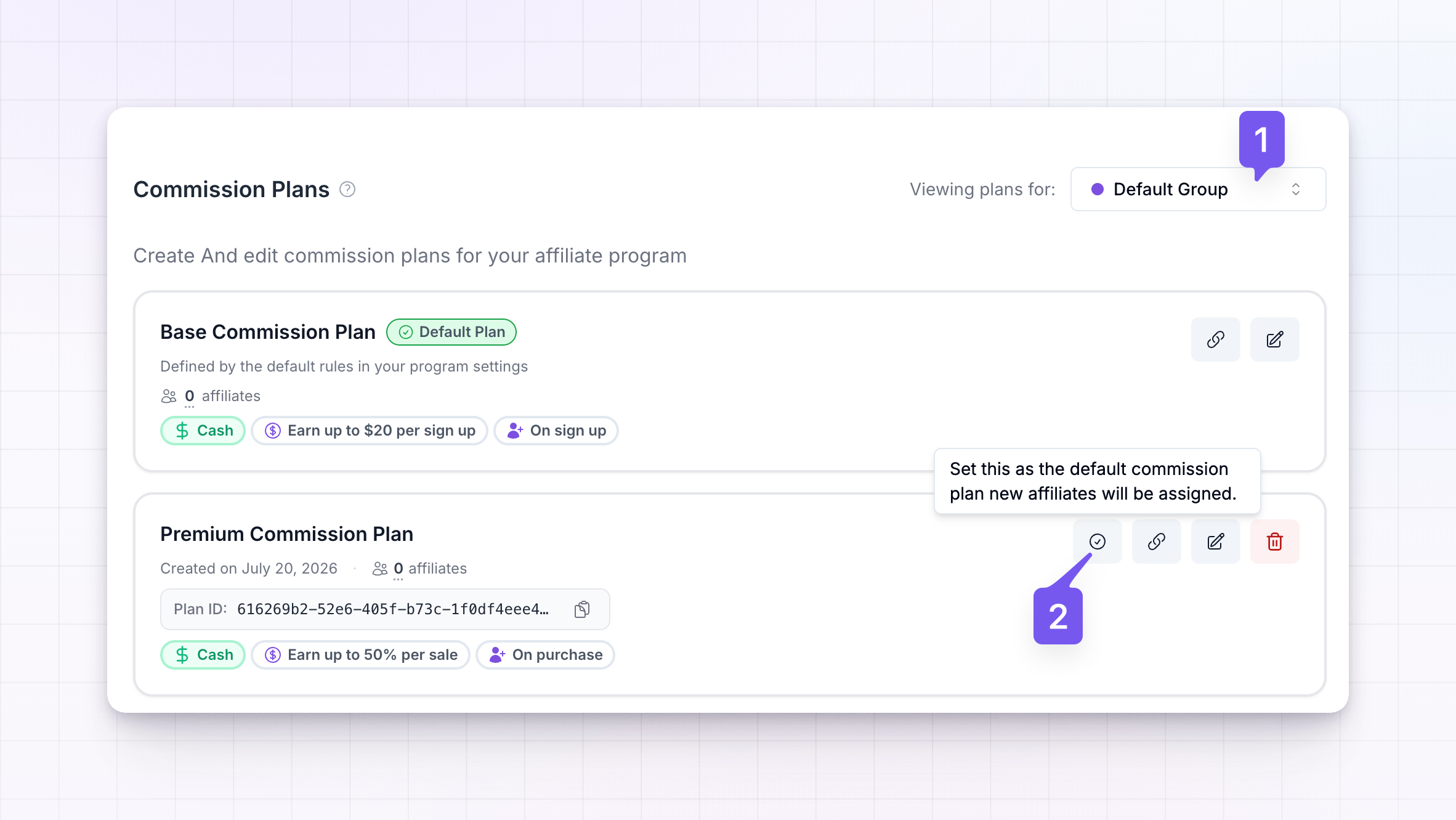
- Program level. Click the check button on any plan card to Set as default. The plan with the Default Plan badge is what every new affiliate gets unless something more specific applies.
- Group level. Use the Viewing plans for: selector at the top of the page to pick a group, then build or set a default plan while that group is selected. Plans you create there belong to that group. Learn more in affiliate groups.
- Affiliate level. You can put a single affiliate on a different plan from their profile or row menu. See change an affiliate’s commission plan.
- Customer level. When you change an affiliate’s plan, you can turn on Update existing referrals to move their past referrals onto it too. You can also change a plan for one referred customer. See change a customer’s commission plan.
Changing a plan only affects future referrals by default. Existing referrals keep their current plan unless you choose to update them.
Availability and access
You can build an unlimited number of custom commission plans. It isn’t a count that grows with your pricing tier. It’s a single feature that’s either on or off for your plan. Custom commission plans are part of the Startup plan and up. They aren’t included on the Indie plan or a trial of it. On those, the Add Commission Plan button shows an upgrade prompt instead of opening the editor. If you see that prompt, you can still use your Base Commission Plan for everyone. To build custom plans, upgrade from the prompt or from billing and plans.Related
General program settings
Set the baseline reward your Base Commission Plan reflects.
Affiliate groups
Organize affiliates and give each group its own plan.
Change an affiliate's plan
Move a single affiliate onto different terms.
How rewards are calculated
See how a plan turns a sale into a reward.