

Turn off automatic approval
Whether new affiliates go live on their own is controlled by your Auto-approve settings. These live on your base commission plan — the baseline terms that apply to your whole program. To find them, go to Settings, open Program details, and select General. Find the Auto-approve settings card and open it.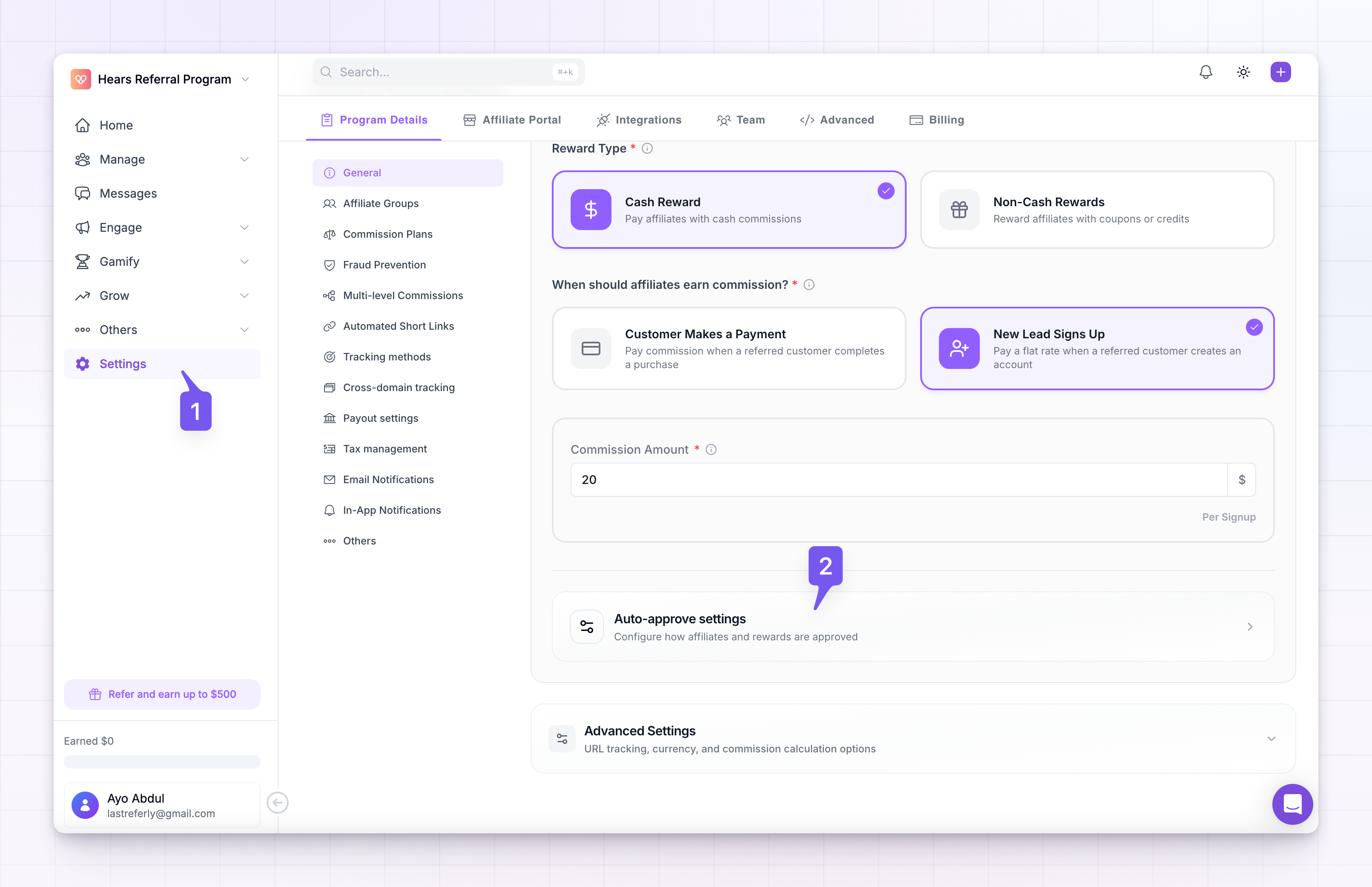 Inside, turn off Auto approve affiliates. The helper text reads New affiliates are approved immediately when enabled — so switching it off does the opposite: new affiliates wait for you instead of going live on their own.
- On (the default): anyone who joins is approved immediately and can start promoting right away.
- Off: new affiliates land in a pending state and can’t promote until you review and approve them.
Apply the setting to every commission plan
Each commission plan carries its own approval setting, so turning off automatic approval on your base plan doesn’t automatically change the plans you’ve built with their own terms. The Apply to all commission plans toggle, in the same Auto-approve settings card, is how you make one choice stick everywhere.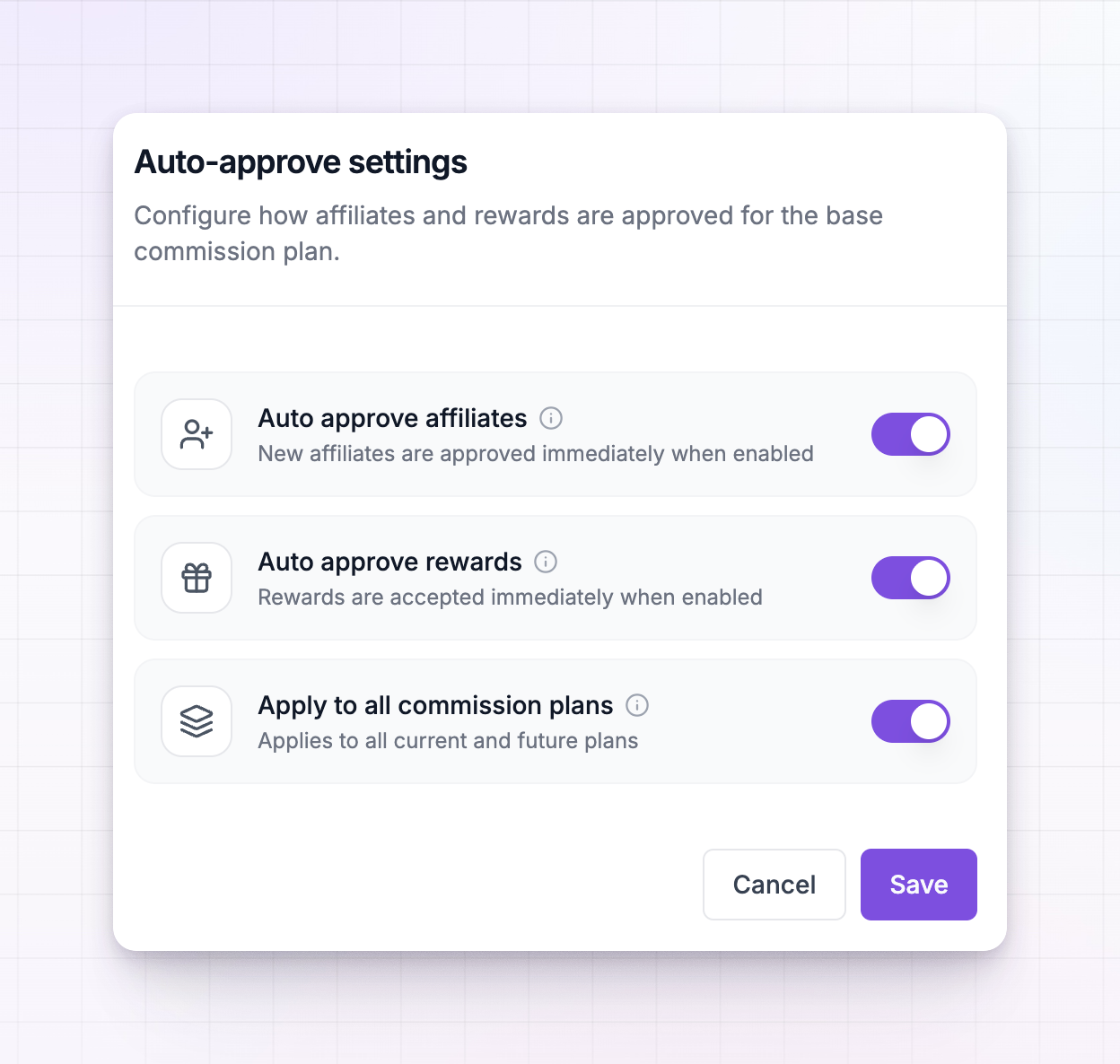 When it’s on, the approval choice you just made is pushed to all current and future plans — every custom plan you already have is updated to match, and any new plan you create starts out the same way. Its helper text reads Applies to all current and future plans. This is the setting to use when you want a single, consistent rule across your whole program: review everyone, or review no one.
When it’s off, your base plan setting only affects affiliates on your base terms. Each custom plan keeps whatever it’s set to on its own — which is what the next section covers.
When it’s on, the approval choice you just made is pushed to all current and future plans — every custom plan you already have is updated to match, and any new plan you create starts out the same way. Its helper text reads Applies to all current and future plans. This is the setting to use when you want a single, consistent rule across your whole program: review everyone, or review no one.
When it’s off, your base plan setting only affects affiliates on your base terms. Each custom plan keeps whatever it’s set to on its own — which is what the next section covers.
Set approval per commission plan
If you’d rather review affiliates on some plans but let others in automatically, leave Apply to all commission plans off and set each plan’s approval independently. Open the commission plan you want to change and expand its Auto-approve settings panel. It has the same Auto approve affiliates toggle as your base plan, but it only affects affiliates who join on that plan.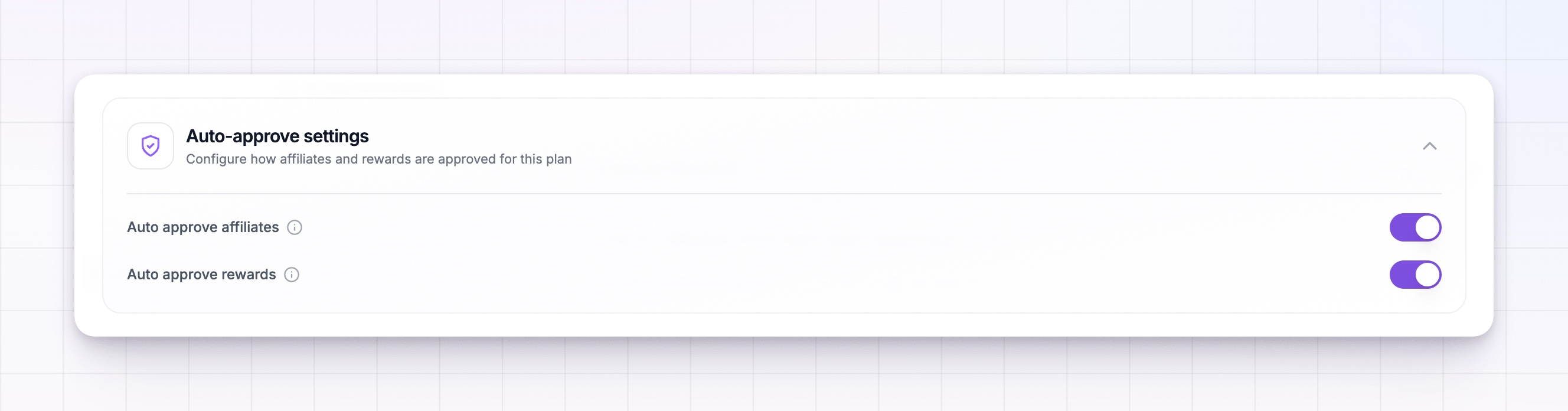 This lets you mix approaches. For example, you might auto-approve affiliates who join through a trusted partner’s plan, while holding everyone from your public sign-up page for review. Just remember: if you later turn Apply to all commission plans back on, it overwrites these per-plan choices with your base setting.
What affiliates see while they wait
When approval is required, an affiliate finishes signing up as normal, but instead of landing in their portal they see a waiting screen. It reads Wait while we review your affiliate application, with the reassurance We will let you know once we approve your account and a Log out button.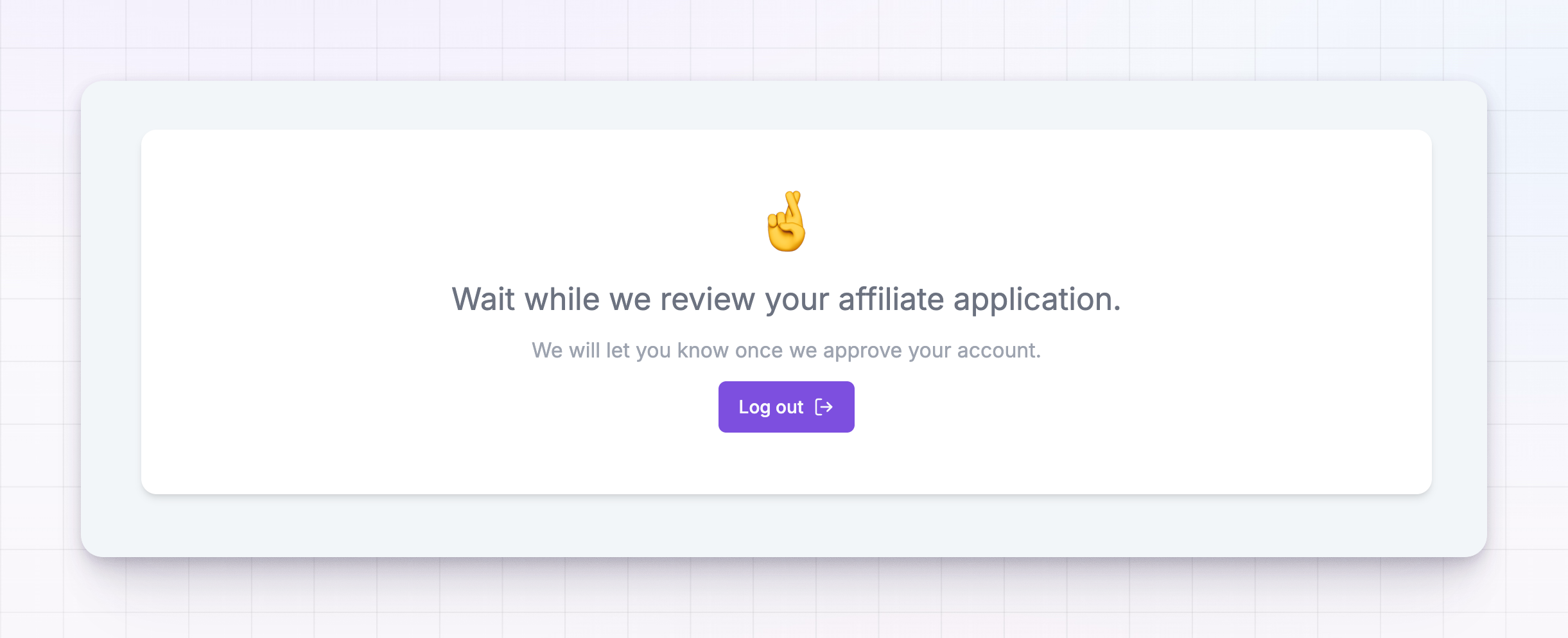 They can’t reach their referral link, assets, or dashboard until you approve them, so nothing is tracked or earned while they wait. Once you approve them, they get in and can start promoting. If you decline them, they see a message telling them their application was declined and to contact you if they think it’s a mistake.
Review and approve or decline an application
Affiliates awaiting your review show up in your affiliates list with a Pending status, so you can spot who’s waiting. Select an affiliate to open their detail page, where you decide.1
Open the pending affiliate
From your affiliates list, select the person you want to review to open their detail page.
2
Review what they submitted
Read what you know about them before you decide. If you ask application questions, open the Answers tab to see everything they told you when they signed up — the platforms they promote on, their audience, or any documents you asked them to upload.
3
Approve or decline
At the top of the page you’ll see two buttons: Approve Affiliate and Reject Affiliate. They only appear while an affiliate is pending.
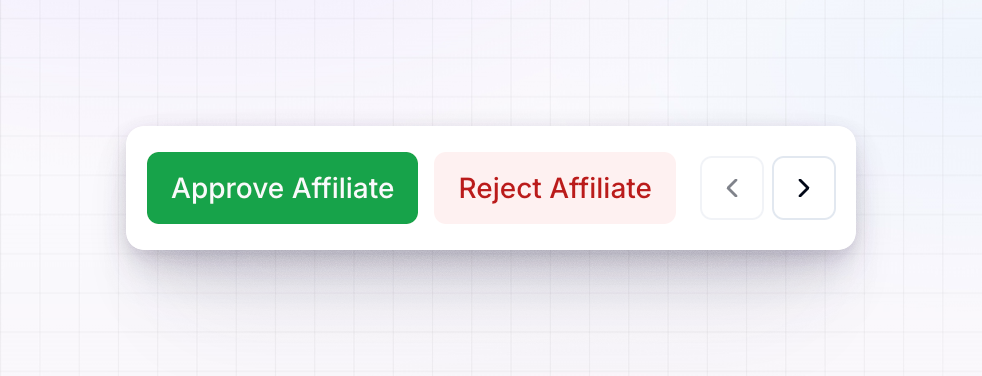
Approve an affiliate
Select Approve Affiliate. A confirmation asks Are you sure you want to approve this affiliate? They will be able to start promoting your campaign immediately. Select Approve to confirm.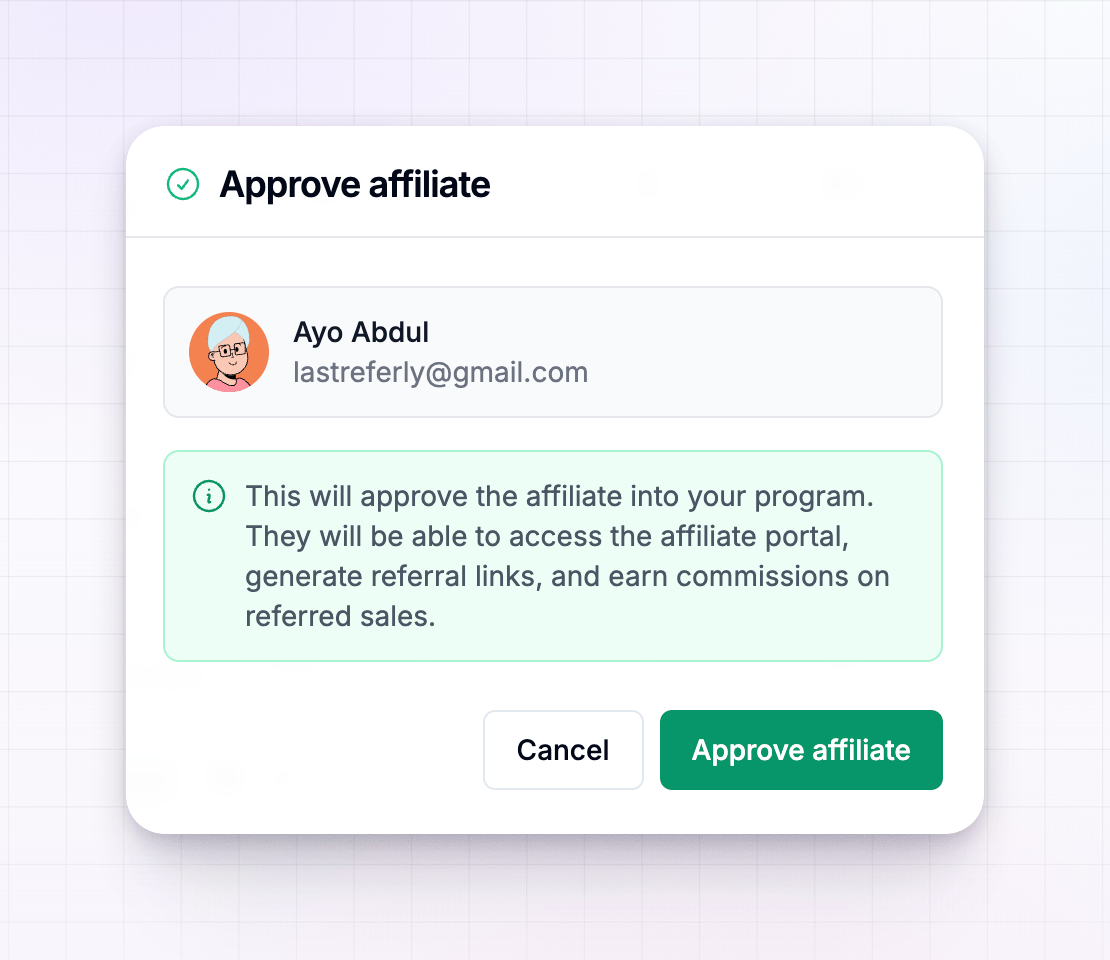 The affiliate becomes active right away. Their waiting screen is replaced by their full portal, their referral link and any promo code start working, and their referrals and commissions are tracked from then on.
Decline an affiliate
Select Reject Affiliate to turn the application down. A confirmation asks Are you sure you want to reject this affiliate? This action cannot be undone. Select Reject to confirm. The affiliate’s status changes to Declined, and they see a message letting them know their application wasn’t accepted, with a note to contact you if they believe it’s a mistake. As the confirmation warns, this can’t be undone, so read their details before you decline.Related
Let affiliates sign up
Open your portal so affiliates can apply on their own.
Ask application questions
Collect the details you need to review an applicant.
Affiliate statuses
See what pending, approved, and declined mean.
Commission plans overview
Set the terms — and the approval rule — for each plan.