

New to migrating in general? Start with the Migration overview for how imports work, then come back here for the Tolt-specific steps.
Before you start
You’ll need:- Admin access to your Tolt account, so you can reach its settings and copy your API key.
- Your Tolt program ID — the ID of the program you’re importing from. Finding it is covered below.
- Your Referly program open in the dashboard, ready to import into.
- A few minutes. Larger programs take longer to pull across, but the import runs in the background — you don’t have to wait on the screen.
Get your API key from Tolt
Referly connects to Tolt using your API key. Here’s how to find it on Tolt’s side:1
Log in to Tolt
Sign in to your Tolt account as an admin at
app.tolt.io.2
Open Settings, then Integrations
Go to Settings, then open the Integrations tab. This is where Tolt keeps your API keys.
3
Copy your API key
Copy the API key shown there. A live key starts with
tlt_live_ followed by a long string of letters and numbers. This one value is the first of the two things Referly needs.If you don’t see a key yet, create one on that same Integrations tab. If you ever think a key has been exposed, rotate it in Tolt and reconnect in Referly with the new key.
Find your Tolt program ID
Tolt lets you run more than one program, so alongside the API key Referly needs the program ID of the exact program you want to bring across. A Tolt program ID looks likeprg_ followed by a string of letters and numbers, for example prg_YRsbPDAKhWfdqJbFACheh.
The surest way to get it is to look it up from Tolt directly, using the same API key you just copied. On any computer, run this in a terminal, replacing YOUR_API_KEY with your key:
id (the value starting with prg_) and its name. Copy the id of the program you’re migrating — if you only run one program, there’ll be just one to choose from.
With your API key and program ID in hand, head back to Referly.
Open the import tool and choose Tolt
1
Open the import tool
In your Referly dashboard, select the plus (+) button in the top bar, then choose Import Data. You can also select Import from the top of your Affiliates, Customers, or Sales pages.
2
Pick Tolt as your source
On the Choose your source screen, select Tolt from the list of platforms.
Connect your Tolt account
The next screen shows Tolt connecting to Referly, with two fields: API key and Program ID.1
Paste your API key
Paste the API key you copied from Tolt into the API key field. It’s hidden as you type, the same way a password field is.
2
Enter your program ID
Paste your program ID (the value starting with
prg_) into the Program ID field. This tells Referly exactly which Tolt program to read from.3
Save the connection
Select Save connection. Referly checks your key and program ID with Tolt right away. If it works, you’ll see the connection saved with a green Saved connection badge. If it doesn’t, double-check that you copied the whole key and the right program ID, then try again.
Choose what to import
Once the connection is saved, you choose which parts of your Tolt program to bring over. There are three, and they line up with Tolt like this:
You can tick one, two, or all three — but the order you import them matters. Referred customers attach to affiliates, and sales attach to customers, so those have to exist in Referly first. Always bring your affiliates over first, then referrals, then sales. See Import in the right order below.
Pick the fields to bring across
When you tick an object, it expands to show every field Referly can pull from Tolt for it. Each field has a checkbox, so you decide exactly what comes across. A few fields are marked Required — these are the details Referly needs to create the record, so they’re always on and can’t be switched off. Here’s what you can bring for each object.Affiliate (partner) fields
Affiliate (partner) fields
- First name (required) — the partner’s first name.
- Last name (required) — the partner’s last name.
- Email (required) — the partner’s email address. This is also how Referly links their referred customers and sales back to them.
- Join date — when they joined your Tolt program, so their history stays accurate.
- Payout email — their payout email, when Tolt has one on file.
- Affiliate link — their referral link, so their existing links carry over.
- Provider affiliate ID — the ID Tolt used for the partner, kept for your reference.
- Provider status — the partner’s status in Tolt (for example, active), kept for your reference.
Referral (customer) fields
Referral (customer) fields
- First name (required) — the customer’s first name.
- Last name (required) — the customer’s last name.
- Email (required) — the customer’s email address.
- Affiliate email (required) — the email of the partner who referred them. This is how each customer gets attached to the right partner, which is why affiliates must be imported first.
- Join date — when the referral was first created in Tolt.
- External user ID — the customer’s ID from your own system as Tolt recorded it, kept for your reference.
- Provider customer ID — the referral’s ID in Tolt, kept for your reference.
- Provider status — the referral’s status in Tolt.
Sale fields
Sale fields
- Customer email (required) — the email of the customer who bought.
- Customer name — the customer’s name.
- Affiliate email — the email of the partner credited for the sale.
- Transaction amount (required) — the value of the sale.
- Transaction date — when the sale or charge happened.
- Commission (required) — the commission earned on that sale.
- Paid status — whether the commission was paid or unpaid in Tolt, so your payout history stays right.
- Promo code — the coupon or promo code used on the sale, when Tolt has one.
- Provider transaction ID — the commission’s ID in Tolt, kept for your reference.
- Provider status — the commission’s status in Tolt.
Check the field matches
Before anything is imported, Referly shows you a preview of your Tolt data lined up against the matching Referly fields. This is your chance to confirm everything landed in the right place — that names, emails, and amounts are matched to the fields you’d expect.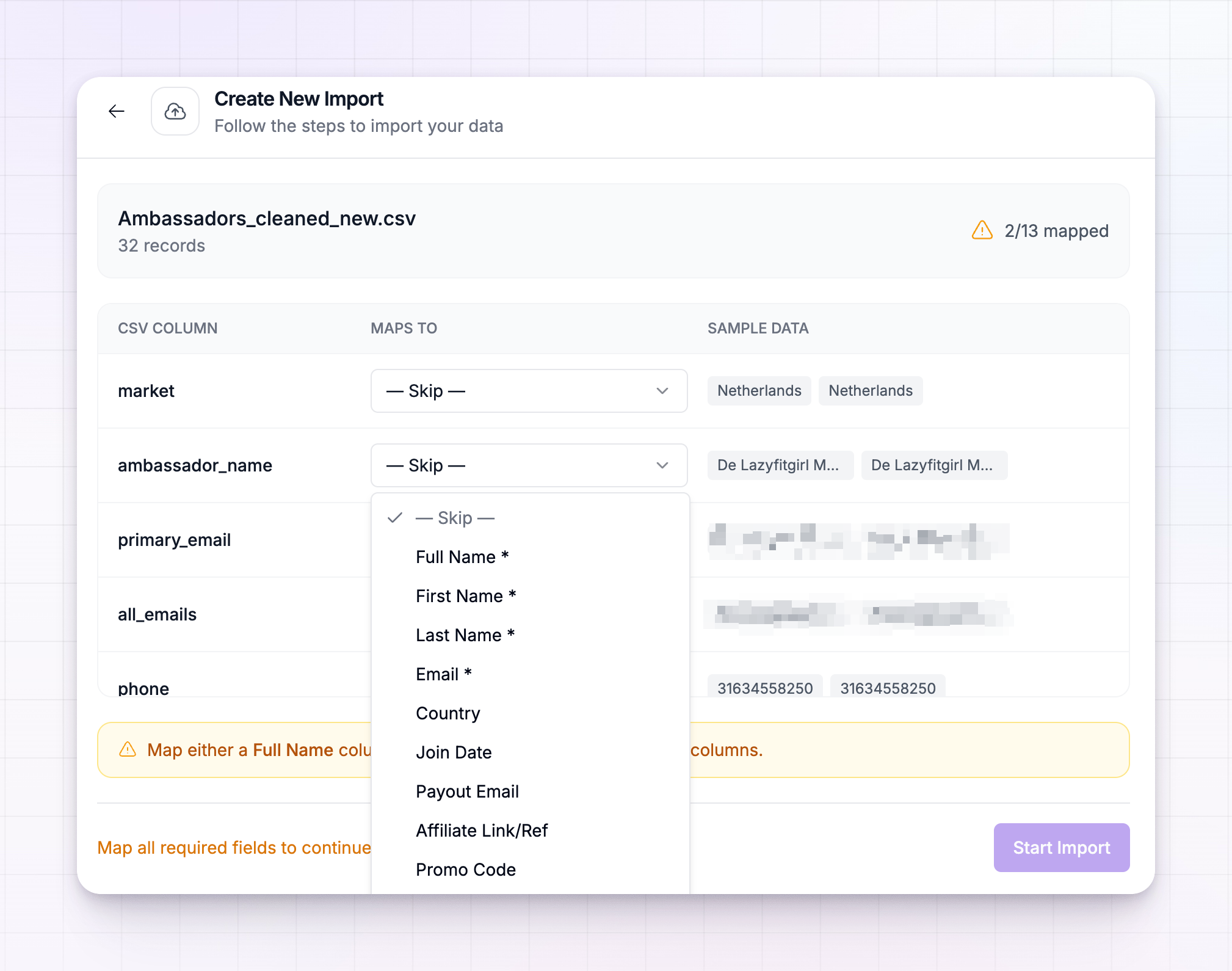 Look the preview over, and when it looks right, confirm to start the import.
Start the import and follow its progress
Imports run in the background, so you can close the panel and keep working. Every import appears in the Recent Imports list inside the import tool, each with its own progress. An import moves through these states:
Each card shows a progress bar and a running count of how many records came in and how many were skipped. A record is skipped when it’s missing a detail Referly needs — for example, a Tolt referral with no customer email, or a sale with no partner attached. That’s normal; the skipped count just tells you those few couldn’t be brought across.
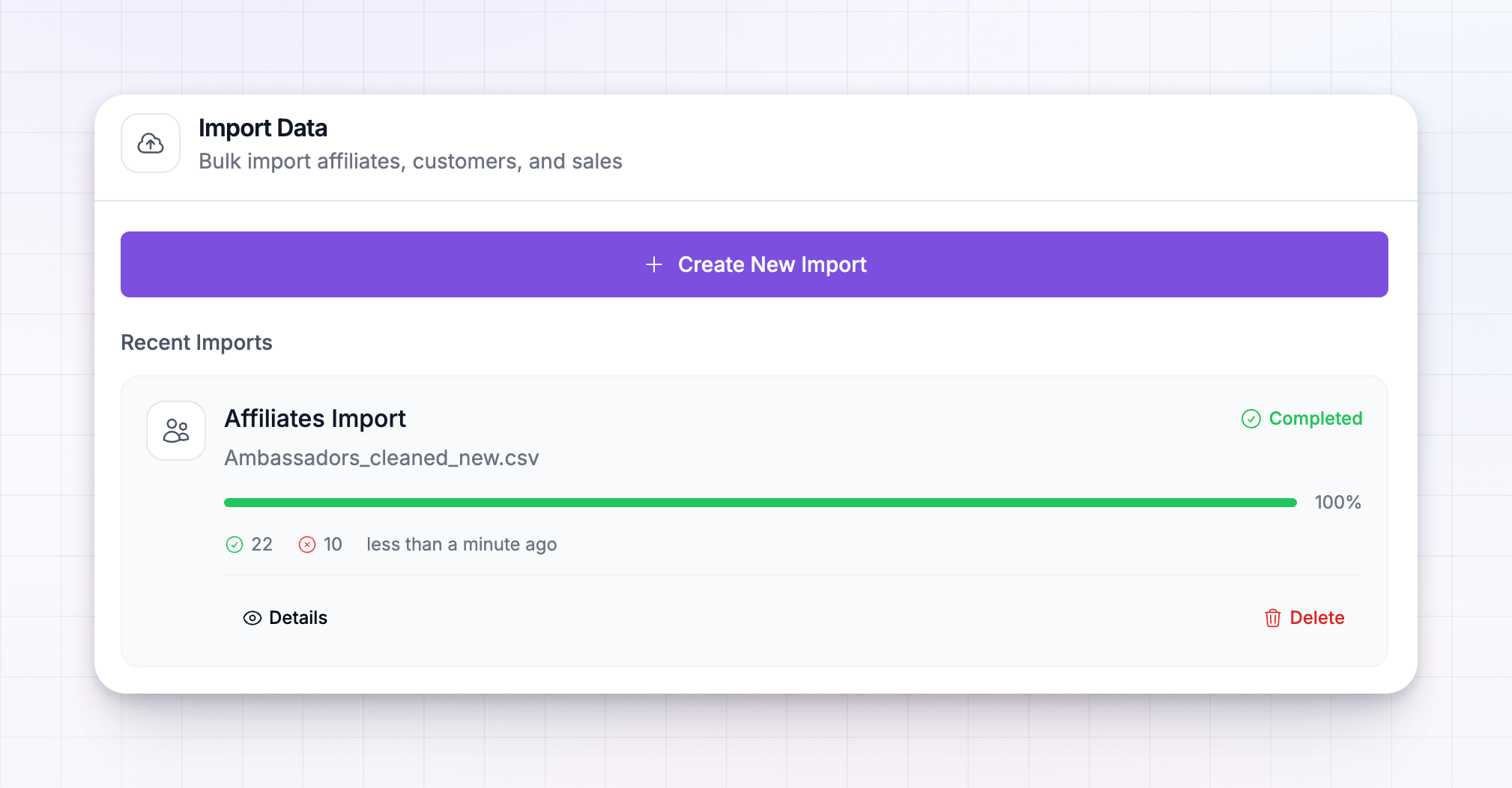 You can pause a running import and resume it later, open Details for the full breakdown, or delete one you no longer need.
Import in the right order
Because referred customers attach to affiliates and sales attach to customers, run your Tolt imports in this order and let each finish before starting the next:1
Affiliates first
Bring your partners over so there’s an affiliate for every customer and sale to attach to.
2
Referrals next
Import your referred customers. Each one links to its partner by email — which only works once those affiliates are already in.
3
Sales last
Import your commissions and sales, credited to the partners and matched to their customers.
Related
Migration overview
How imports work and what you can bring across.
Migrate from CSV
Prefer a spreadsheet? Import affiliates, customers, or sales from a file.
Commission plans overview
Set the terms your migrated affiliates earn on.
Invite affiliates
Bring new partners into your program by email.