> ## Documentation Index
> Fetch the complete documentation index at: https://www.referly.so/docs/llms.txt
> Use this file to discover all available pages before exploring further.
# Product-based commissions
> Pay affiliates a different commission rate per product, service, or Shopify collection in Referly by adding a Product condition to a custom commission plan. The base plan is a single flat rate, so product-based rates need a custom plan.
Most programs pay one commission rate on every sale. But sometimes you want to pay more on a high-margin product, less on a discounted one, or a special rate on a single service or Shopify collection. This guide shows you how to pay a different rate depending on what a customer buys.
If you have been hunting for a per-product rate on your main commission settings and can't find one, that's expected. Product-based rates live in a **custom commission plan**, not the base plan. Here's why, and how to set one up.
## Why product rates need a custom commission plan
Your program has one **Base Commission Plan**, set under **Program Settings** → **Program Details** → **General**. It is deliberately simple: a single **Commission Type** (percentage or flat) and one **Commission Rate** that applies to every referred sale. There is no place on it to say "pay this rate for this product" because it is one rate for everything.
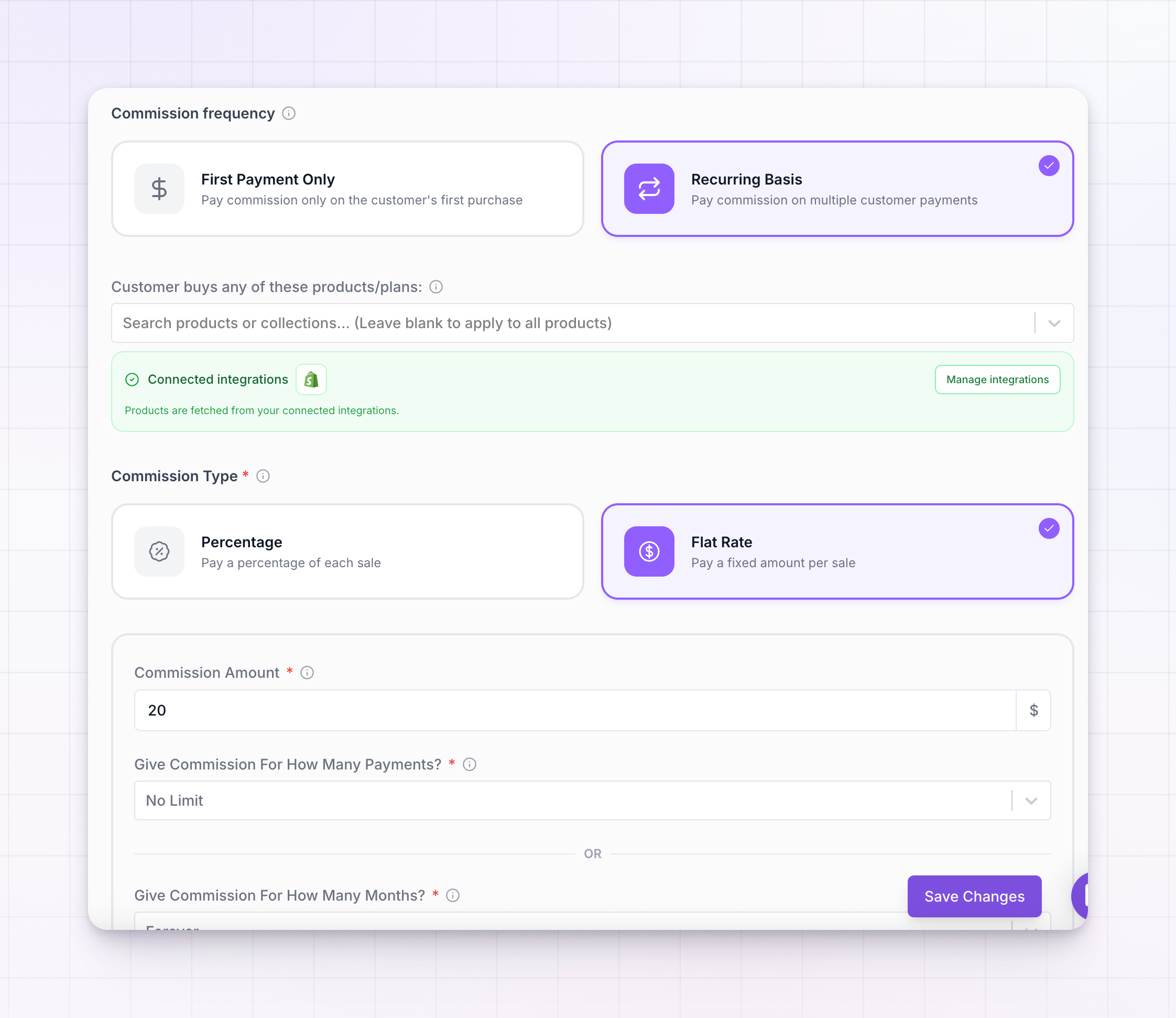
To pay by product, you create a **custom commission plan**. Custom plans let you add **conditions** that check what was bought and pay a different reward when they match. That's the piece the base plan doesn't have.
A custom commission plan can hold several rates at once, each with its own product condition, plus a default rate for everything else. So one plan can cover all your product-based rules.
## Connect where you sell
So you can search for products by name instead of typing IDs, connect the platform your sales run through first. Referly pulls your product list from these connected integrations:
* [Stripe](/docs/help-center/integrations/stripe)
* [Shopify](/docs/help-center/integrations/shopify)
* [WooCommerce](/docs/help-center/integrations/woocommerce)
* [Polar](/docs/help-center/integrations/polar)
**Collections** are a Shopify feature, so the option to target a collection only appears when Shopify is connected. With Stripe, WooCommerce, or Polar you target individual products.
You don't strictly need an integration to build the rule, but without one you'd have to enter product IDs by hand. See [connect an integration](/docs/help-center/integrations/overview) to link a platform.
## Create a custom commission plan
Open **Program Settings** → **Program Details** → **Commission Plans**. At the top you'll see your **Base Commission Plan** with a **Default Plan** badge. To make a new plan, select **Add Commission Plan**.
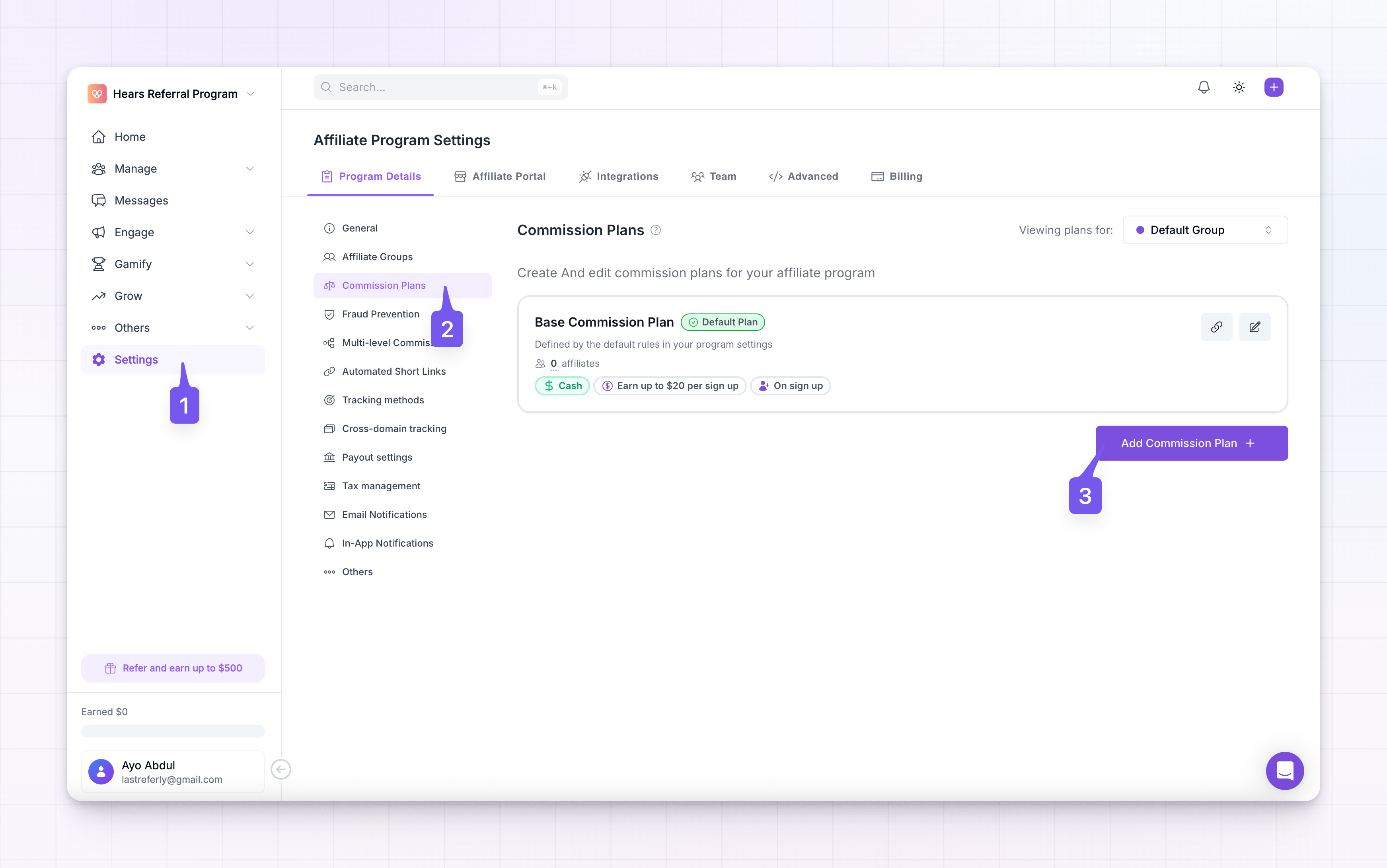
The plan builder opens. It has three parts:
* **Commissions** tabs across the top. Every plan starts with a **Default** commission, and you add more as **Commission 1**, **Commission 2**, and so on. Each tab is one rate.
* A **Conditions** panel on the left, where you decide when a commission applies.
* A **Reward** panel on the right, where you set what the affiliate earns when it applies.
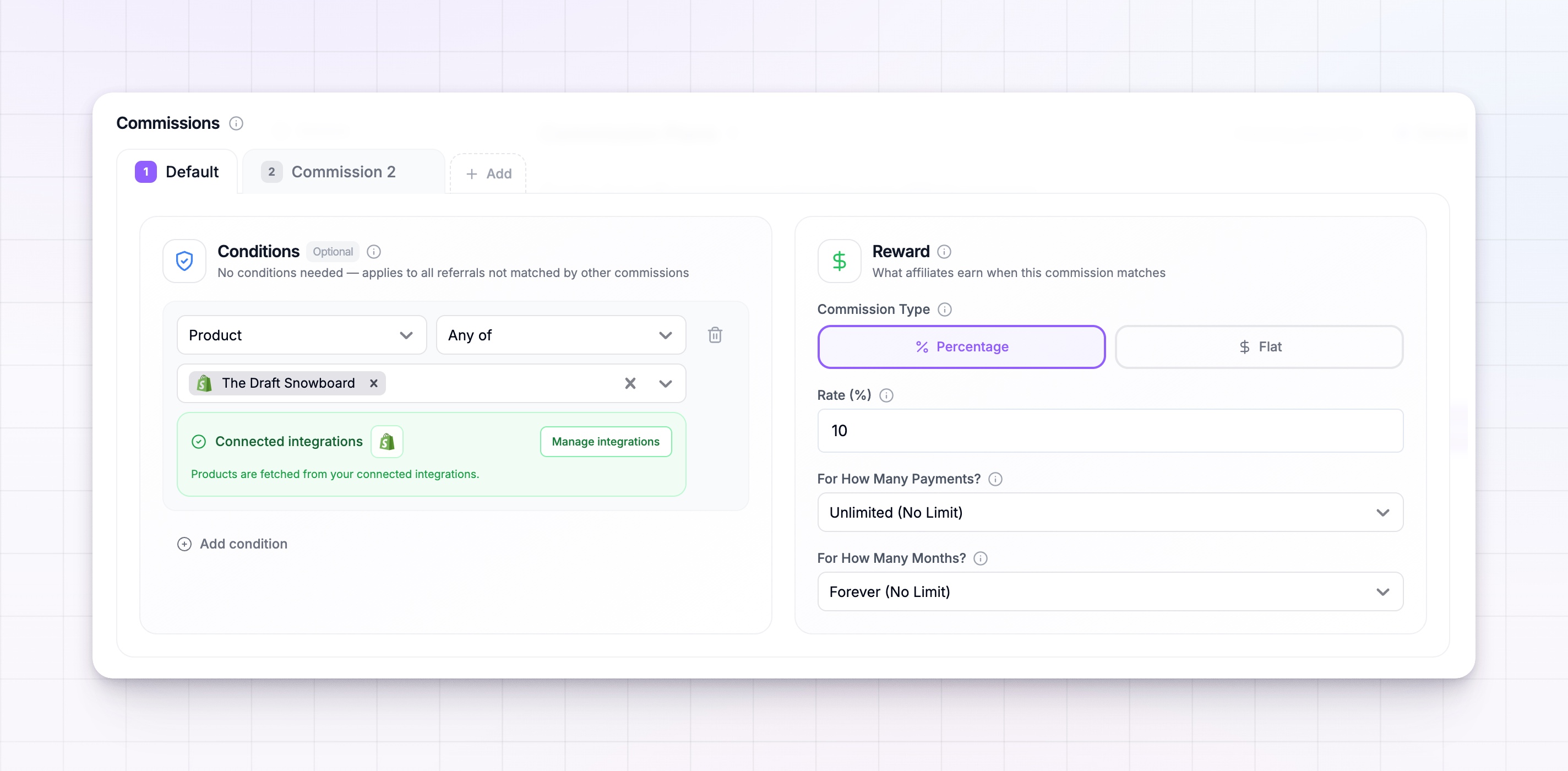
Give the plan a name so you can recognize it later, then move to the commission you want to attach the product rate to.
## Add a Product condition
Product-based rates work by adding a **commission** with a **Product** condition, then giving it the reward you want for those products. Pick the **Add** tab to create a new commission (for example **Commission 1**), or select an existing one.
In its **Conditions** panel, select **Add condition**. Two dropdowns appear:
Open the first dropdown (**Rule type**) and choose **Product**. This tells the commission to look at what the customer bought.
Open the second dropdown (**Condition**) and pick how to match:
* **Any of** — the reward applies when the purchase includes one of the products you select.
* **None of** — the reward applies to everything except the products you select.
## Search and select your products
A search box appears below the condition. Start typing a product name and Referly searches your connected integrations, then shows matching results to pick from. You can select more than one.
* If **Shopify** is connected, the box reads **Search products or collections...** and collection results are marked with `(collection)` so you can tell them apart from individual products.
* With other integrations, the box reads **Search products...** and shows individual products only.
* **Leave the box blank to apply the rate to all products.** That's useful for a catch-all rate paired with **None of**, or when the condition is really about something else.
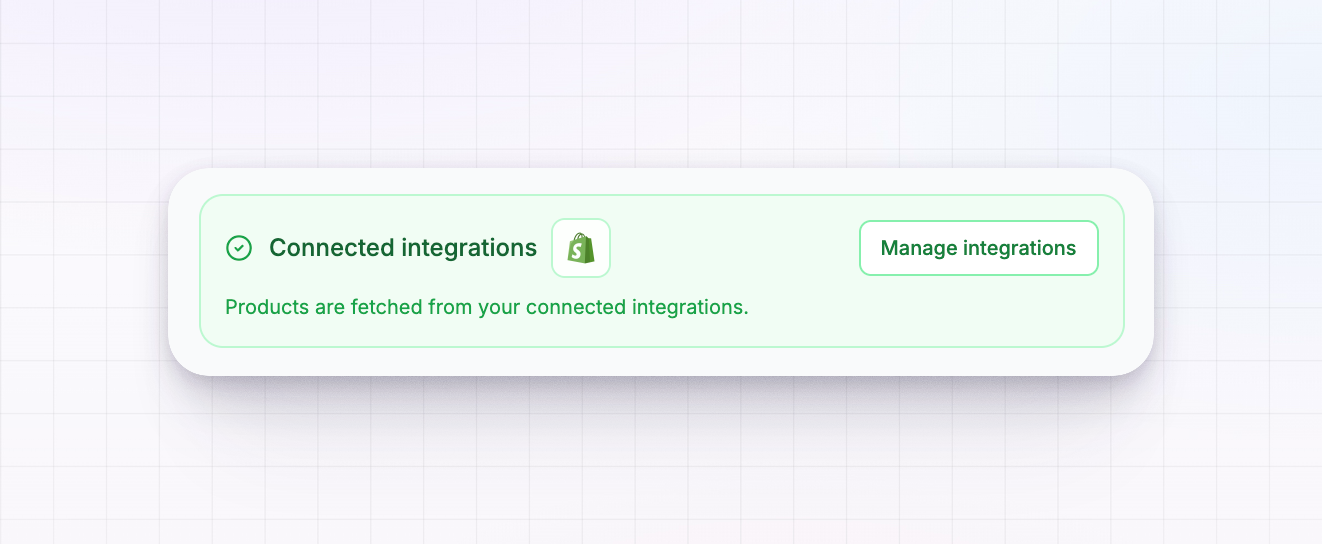
Under the box, a **Connected integrations** banner confirms where products are coming from, with a **Manage integrations** button. If you haven't connected anything yet, it reads **No product integration connected** and offers a **Connect Integration** button — you can still type product IDs manually in the meantime.
## Set the reward for those products
In the **Reward** panel on the right, set what the affiliate earns when this commission's conditions match — a percentage of the sale or a flat amount. This is the rate that will apply to the products you chose.
Every plan also keeps a **Default** commission. It has no required conditions and catches any sale your other commissions don't match, so nothing goes unpaid. Set the Default to your normal rate, and let each product commission override it for its own products.
Commissions are checked in order, left to right, and the first one whose conditions match wins. The **Default** applies to anything left over. So put your most specific product rates first, and keep the Default as your fallback rate.
## Add more than one product rate
To pay several different rates by product, add a commission for each one. Use the **Add** tab to create **Commission 2**, **Commission 3**, and so on, and give each its own **Product** condition and **Reward**.
You can also combine a product with another check inside a single commission — for example a product **and** a minimum order amount. When a commission has two or more conditions, a selector appears:
* **ALL conditions must match** — every condition has to be true.
* **ANY condition can match** — the reward applies if at least one is true.
For most product-based rates a single **Product** condition is all you need.
## Save and assign the plan
Save the plan when it looks right. A custom plan only affects affiliates once it's assigned to them. You can:
* Set it as the **default** plan new affiliates get, from the Commission Plans page.
* Assign it to an [affiliate group](/docs/help-center/manage/affiliates/groups).
* [Change the plan on an individual affiliate](/docs/help-center/manage/affiliates/change-commission-plan) or on a [referred customer](/docs/help-center/manage/customers/change-commission-plan) using the **Change Commission Plan** option.
Once the plan is assigned, referred sales that include your chosen products pay the product rate, and everything else pays the plan's Default rate.
## Related
See how Referly decides what an affiliate earns on each sale.
Vary commission by order amount, landing page, coupon, and more.
Assign a custom commission plan to specific affiliates.
Link Stripe, Shopify, WooCommerce, or Polar to search products by name.